 RelayDM
To work out how to turn off auto reply on Instagram, first identify what is generating the message. A native business inbox setting, a connected automation tool and a staff member using a saved reply are different sources. Pausing the wrong one can leave the unwanted response running while unnecessarily disrupting an unrelated campaign.
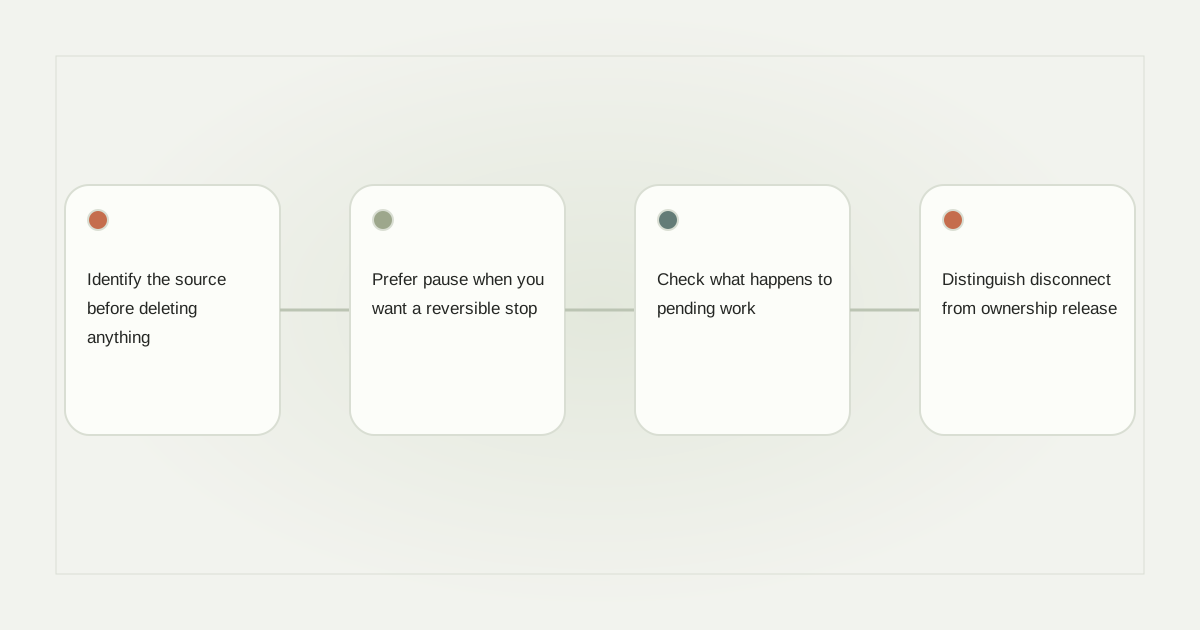
Identify the source before deleting anything
Write down an example message, the approximate time and whether it follows a comment, a direct message or an out-of-hours enquiry. Check the business account’s native inbox settings and the tools authorized to manage messaging. Use the current official interface rather than old screenshots of menu names.
A saved response chosen manually is not necessarily an automatic rule. Likewise, an opening private reply to a Reel comment is different from an away message. Matching the trigger to the message helps you disable the right behavior without losing useful drafts.
Prefer pause when you want a reversible stop
In the responsible tool, pause the specific automation and confirm that its server-side status changes. Merely closing an editor or removing a browser tab does not stop published work. Keep a note of the rule and account so another team member does not reactivate it by mistake.
If the tool provides separate controls for a campaign and the whole account, choose the narrowest reliable stop. An incident affecting many rules may justify an account-level containment step, but routine copy editing should not require deleting the entire integration.
Check what happens to pending work
Ask whether already accepted jobs are cancelled, held or still eligible to send after pause. A responsible Instagram auto reply software should describe that boundary. Do not assume that changing the visible toggle retracts a request already accepted by the provider.
For a sensitive incident, ask support for pending and leased job status and any uncertain provider outcomes. Avoid repeated test comments while this is being checked. An Instagram auto reply limit is not an emergency stop if the remaining allowance still permits unwanted sends.
Distinguish disconnect from ownership release
Disconnecting can revoke access or stop synchronization while preserving account associations and historical data. Moving an Instagram account between workspaces is a separate authorization problem. Read the application’s explanation before using Disconnect as a workaround for an editing issue.
Delete only when you understand which records and workflows will disappear. Export any information you are entitled to retain through the supported process. Never copy private customer conversations into an unapproved personal document merely to preserve a campaign draft.
Verify a quiet state and plan the restart
Review the actual account and automation status, then check for new unintended sends without manufacturing another recipient interaction. Keep the last known message and time as evidence. An absence of browser notifications is not the same as confirming no background work remains.
When restarting, review the post, message, destination and permissions again. RelayDM’s general sending gate must remain intact even if a draft is unpaused locally. Instagram auto reply examples are useful for copy, but they do not establish that a particular account is authorized to resume delivery.
Use the background event guide and account-warning checklist if the stop is incident-related. Check current RelayDM availability before restarting a paid workflow.
Sources and editorial notes
Source review: November 1, 2026. This is research-based guidance, not an independent hands-on test of every product. Prices and permissions can change.
Read our methodology, product-availability policy and corrections process.